



Skymesh Welcomes NBN’s Partnership with Amazon’s Project Kuiper
Skymesh is excited to share the news about nbn’s® partnership with Amazon’s Project Kuiper, which promises to revolutionise satellite internet services for regional, rural, and remote Australians.
A New Era for Satellite Internet in Australia
nbn® has signed an eight-year contract with Amazon’s Project Kuiper to deliver next-generation Low Earth Orbit (LEO) satellite broadband to over 300,000 regional, rural, and remote customers across Australia. This significant development will replace the existing nbn® Sky Muster® geostationary satellites, with the transition set to begin in mid-2026.
As Australia’s largest Sky Muster® internet service provider, Skymesh is pleased with this announcement and looks forward to working closely with nbn® as this technology is rolled out to our customers.
What This Means for Skymesh Customers
The shift from geostationary satellites to LEO technology represents a major upgrade for satellite internet users. LEO satellites orbit much closer to Earth than traditional satellites, resulting in significantly lower latency and faster broadband speeds.
Key points from the announcement include:
- nbn® will continue operating the current Sky Muster satellites until all customers are successfully migrated to the new service, ensuring continuity of service during the transition
- Project Kuiper will eventually deploy approximately 3,200 satellites globally through around 80 launches, though not all satellites are required for Australian service to commence
- Professional installation and equipment will be provided at no cost for existing Sky Muster users
- Maintenance, repairs, and installation services will continue through nbn’s® national technician fleet
- The migration process will be free and fully supported, with nbn® also exploring self-install options for eligible customers
- Pricing will follow a tiered structure similar to other nbn® technologies
Looking Ahead
While wholesale pricing, RSP terms, and speed tiers are still under stakeholder consultation, Skymesh is committed to keeping our customers informed about developments as they occur.
“This partnership between nbn® and Amazon’s Project Kuiper represents a significant leap forward for regional internet connectivity in Australia,” says Jordan Grives, CEO of Skymesh. “We’re excited about the potential for dramatically improved service for our rural and remote customers. As a company dedicated to bridging the digital divide, we see this as a positive step toward ensuring all Australians have access to reliable, high-speed internet regardless of their location.”
Skymesh will provide further updates as more information becomes available. We remain committed to ensuring a smooth transition for our customers and delivering the best possible internet experience to regional, rural, and remote Australians.
Want to be the first to know?
Register your interest to receive updates, more information, and early offers as they become available.
Learn more about Amazon Kuiper plans and how it will compare to existing nbn® satellite plans.
Footnotes:
Eligible customers are customers with fixed address Premises within the current nbn satellite footprint that can receive nbn’s wholesale LEO satellite offering, powered by Project Kuiper, including both existing Sky Muster and Sky Muster Plus satellite service customers and new customers within the current nbn satellite footprint. Installation would be provided at no cost for a professional initial standard installation by a qualified nbn technician. Further information about customer equipment and installation will be made available following consultation with RSPs, government and regional stakeholders.

School Student Broadband Initiative Extended Until 30 June 2028
School Student Broadband Initiative Explained
Update: The SSBI program is no longer accepting new applications, as all available spots have been filled.
Unredeemed vouchers remain valid until 11:59pm on 30 June 2025.
Customers who redeemed a voucher will continue to receive the SSBI offer until 30 June 2028
Skymesh is proud to join forces with the Australian Government and nbn® Co to provide free broadband to families in need. As part of the School Students Broadband initiative, Skymesh is committed to providing up to 50 megabits per second (Mbps) of fixed-line, Fixed-Wireless Plus, and Sky Muster Plus services to 30,000 families across Australia who currently lack internet access.
This initiative is a landmark step forward in providing equal opportunities for students and families, no matter where they live in Australia or how much they earn. Skymesh is honoured to be part of this solution and to deliver reliable and fast broadband services to those who need it the most.
“We believe everyone deserves equal access to the internet and to be able to receive a quality education. This initiative is a step forward in providing equal opportunities for students across the country,” says Jordan Grives of Skymesh. “We’re proud to be part of the solution and to provide reliable, fast, and affordable broadband to families who need it the most.”
See what’s available at your property
How free internet is changing education
For students who face financial barriers, reliable internet access can mean the difference between falling behind and keeping up with schoolwork. Programs offering free internet access for students are transforming education for those in need across Australia, ensuring that no one is left behind in the digital age.
These programs have reached countless families, helping students access online learning resources, participate in virtual classrooms and complete assignments without the stress of connectivity issues.
Among these efforts is the School Student Broadband Initiative (SSBI). The SSBI has made a significant difference for many eligible families, offering free nbn home internet until 30 June 2028 for students Australia-wide so they can focus on their education without the financial strain.
Government efforts to bridge the digital divide
The Australian Government’s commitment to bridging the digital divide is evident through initiatives like the SSBI that make access to the internet free for students. With the SSBI, the government is making education more accessible to Australians – especially families in remote areas and those on lower incomes. With free internet for low-income students, everyone gets equal opportunities to thrive.
The process on how to get free internet for students is simple. Families that are eligible can be nominated by participating schools, education authorities, charities and community organisations. Families and carers can also self-nominate via the National Referral Centre. Once nominated, you will receive a voucher code. Reach out to Skymesh and provide your voucher number to activate your plan.
If you’re unsure about your eligibility or have more questions about how to apply for free internet for students, reaching out to the National Referral Centre can lead you in the right direction.
These programs are here to make life a little easier so every student can stay connected and keep learning without the hassle of searching for ‘free internet for students NSW’ or ‘free internet for students QLD’.
Frequently Asked Questions (FAQ)
Who is eligible?
To be eligible:
- Have a school age student at home (full or part time) enrolled in an Australian school (up to Year 12 including Prep in QLD/VIC/TAS, Kindy in NSW, Reception in SA, Transition in NT/ACT and Pre-Primary in WA)
- Not have an active nbn® network internet service at their current residential address now or in the past 14 days (having a mobile internet service does not affect eligibility)
- Live in a premises that can access the nbn network via a standard connection
How to participate?
Eligible families with school-aged children can be nominated by participating schools, education authorities, charities, and community organisations. The free internet service will be available from the start of the 2023 school year and has been extended to the end of 2028. Parents and schools can contact participating organisations for more information about how to be nominated.
Once eligibility has been confirmed, you can activate your plan by calling Skymesh with your given voucher number.
Which organisations are participating?
The Smith Family, Catholic Network Australia, and Catholic Education WA have joined the initiative, with more organisations to be announced shortly.
Skymesh is dedicated to connecting communities and delivering affordable, high-speed broadband to households across all of Australia.
For more information on the School Students Broadband Initiative call our sales team on 1300 759 637.

Important Changes to Your Home Phone Service: What You Need to Know
The Big Change Coming to Your Home Phone
If you have a home phone service with Skymesh, please read this important announcement.
Our upstream provider’s traditional telephone network is shutting down on 1st November 2025. This nationwide change affects all home phone services currently running on the Public Switched Telephone Network (PSTN).
As your service provider, we’re committed to making this transition as smooth as possible for you. We’ve developed a comprehensive migration plan to ensure you keep your phone number and experience minimal disruption to your service.
What This Means for You
Over the coming months, we’ll be helping you migrate your home phone service to a modern Voice over Internet Protocol (VoIP) solution. Here’s what you need to know:
✅ Your phone number will stay exactly the same
✅ Your monthly bill will not change
✅ All your current calling features will continue to work
✅ You’ll gain access to new enhanced features
⚠️ You may need updated equipment to continue using your home phone
⚠️ Action is required before 1st November 2025
Why is this migration happening?
The traditional Public Switched Telephone Network (PSTN) is being permanently shut down across Australia by our wholesale provider as part of a nationwide telecommunications upgrade. This is happening because:
- The PSTN technology is outdated and has been in service since the 1950s
- The equipment supporting this network is increasingly difficult to maintain and repair
- Modern VoIP (Voice over Internet Protocol) technology offers better reliability, quality, and features
- The network operators are consolidating services to improve efficiency and reduce environmental impact
Your Migration Timeline
Over the coming months, you’ll receive a series of communications from us guiding you through the migration process:
- Initial Notification (This month): Information about the change and what to expect
- Equipment Selection (2 months before migration): Choose the right hardware option for your needs
- Equipment Delivery (4-6 weeks before migration): Receive your new router or adapter device
- Migration Scheduling (2-3 weeks before migration): Confirm your service transfer date and time
- Migration Day (Your scheduled date): Connect your new equipment with our guidance
- Post-Migration Support (After migration complete): Set up additional features and confirm everything is working
The Benefits of Your New Phone Service
While this change is mandatory, it comes with several advantages:
- Better Call Quality: VoIP technology often provides clearer, more reliable calls than traditional landlines.
- Enhanced Features: Gain access to advanced features like voicemail-to-email, call filtering, and web-based management.
- Future-Proof Technology: Your new service uses modern technology that will be supported for many years to come.
- Potential for Savings: VoIP services typically offer better rates for international calling and premium features.
Next Steps
- Watch for our communications – You’ll receive an email and letter in the coming weeks with more details
- Consider your equipment needs – Think about which option might work best for your situation
- Respond promptly when you receive your equipment selection notification
- Mark your calendar for 1st November 2025 – the final migration deadline
We understand that technology changes can sometimes feel overwhelming. That’s why we’ve assembled a dedicated migration support team to help you through every step of this process.
Our goal is to ensure your phone service continues without interruption, and that you’re fully comfortable with your new equipment and service.
If you have any questions or concerns about this change, please don’t hesitate to contact us at 1300 759 637 or [email protected]
Have Questions?
Frequently Asked Questions
Will my phone number change?
No, your phone number will remain exactly the same.
We will transfer (“port”) your existing phone number to the new VoIP service with no changes. You will keep:
- Your full 10-digit phone number
- Any special number arrangements (like silent numbers)
- The ability to receive and make calls as you do today
This number portability is protected by telecommunications regulations, ensuring you maintain ownership of your phone number through this transition.
Will my monthly bill change?
No, your monthly service charges for your phone service will not change as a result of this migration.
- Your monthly plan rate will remain the same
- Your included call allowances will remain the same
- Any additional features you currently pay for will continue at the same price
The only potential one-time cost is for new equipment if needed (router or ATA device). We are offering special migration pricing on this equipment to minimise the impact on our customers. Long-term, you may actually save money as VoIP calling often provides better value for international calls and additional features that previously carried extra charges
What equipment do I need?
The equipment you need depends on your current setup and preferences:
Option 1: VoIP-Compatible Router (Recommended)
• A new router with built-in VoIP capabilities
• Your existing phones will connect directly to this router
• Provides the best call quality and reliability
• We’re offering the Netcomm NF20Mesh at a special migration price of $170.00
Option 2: ATA (Analogue Telephone Adapter)
• A small device that connects to your existing router
• Your current phones plug into this adapter
• Works with your existing internet connection
• Available for a one-time cost of $70.00
Option 3: Call Forwarding ( Comm’s 2 / Call Operations Team)
• No new equipment needed
• All calls to your home number are forwarded to your mobile
• Note: You won’t be able to make outgoing calls from your landline number
Our migration team will help you select the best option based on your specific needs, current equipment, and how you use your phone service.
How long will my service be interrupted?
We aim to keep service interruptions as short as possible, but because a large number of numbers are being migrated at once, some customers may be without phone service for a few hours or, in some cases, longer if equipment needs reconfiguration.
Here’s what to expect:
- We’ll notify you before starting the number porting process.
- There may be a period where your phone service is unavailable. The length of the outage will vary depending on your setup and whether any reconfiguration is needed.
- Once your equipment is connected following our instructions, your service will be restored.
Migrations are scheduled during business hours, so our full support team is available to help quickly. If your phone is used for medical alerts or emergency services, please let our migration team know so we can take extra precautions to reduce any disruption.
What if I miss my migration date?
You don’t need to take any action – our team will manage the migration for you. Each customer will be assigned a migration date, and there’s no need to reschedule or select a date yourself.
All migrations will be completed before 1st November 2025, after which the old network will be decommissioned and service cannot be guaranteed. If you rely on your phone for medical alerts or emergency services, please let our team know so we can take extra precautions during your migration.
Will my special features still work?
Yes, all your current calling features (like silent number, call forwarding, etc.) will continue to work after migration.
The following features will be automatically transferred to your new service:
- Silent number arrangements
- Call waiting
- Call forwarding
- Caller ID display
- Three-way calling
- Speed dial settings
In fact, the new VoIP service offers enhanced versions of many features, plus new options like:
- Voicemail to email conversion
- Advanced call filtering
- Web-based call management
- Mobile app integration
Once your migration is complete, you can access and customize these features through your online Skymesh account or by calling our support team.
What happens if I do nothing?
If no action is taken before 1st November 2025, your phone service will stop working and your number may be lost.
The consequences of inaction include:
- You will be unable to make or receive calls.
- Emergency services (000) will be unreachable from your home phone.
- Your phone number will be released back into the number pool.
You will not be charged for your service after 1st November if the migration is not completed.
We strongly encourage you to respond to our communications and complete the migration before the deadline to avoid losing your number and experiencing service disruption.
Who can I contact with questions?
Our dedicated migration support team is available through multiple channels:
Phone Support:
- Migration Hotline: 1300 662 331
- Hours: Monday-Friday 9am-5pm AEST
Email Support:
- Migration Team: [email protected]
Online Support:
- Live Chat: Available on every page of our website www.skymesh.com.au
If you have concerns about how this migration may affect medical alert systems, emergency call buttons, or other critical services, please contact the provider of your medical alert or emergency service immediately for specialised assistance.

How to Get the Most Out of Your Wi-Fi Router
Your Wi-Fi router is the heart of your home internet experience. It’s the device that takes your internet connection and distributes it throughout your home, enabling everything from video streaming and gaming to work calls and smart home functionality.
Yet despite its central role, many Australians are not getting the most from their router. According to a recent nbn commissioned survey in 2025, 42% of residential consumers who use nbn as their main internet service at home haven’t modified their home setup in the past five years.* This means nearly half of nbn users may be experiencing suboptimal internet performance due to outdated equipment or improper configuration.
In this comprehensive guide, we’ll explore how to maximise your Wi-Fi router’s performance, from strategic placement and configuration to understanding when it’s time for an upgrade.
See what’s available at your property
Strategic Router Placement
The single most important factor in your Wi-Fi performance is often your router’s physical location. Even the most advanced router won’t perform well if poorly positioned.
Optimal Placement Guidelines
Follow these key principles for router placement:
– Position centrally: Place your router near the centre of your home rather than at one end. This provides more balanced coverage throughout your living space.
– Elevate your router: Mount your router on a wall or place it on a high shelf (1-1.5 metres off the ground). Wi-Fi signals spread downward more effectively than upward.
– Avoid obstructions: Keep your router away from:
- Concrete or brick walls that block signals
- Large metal objects (filing cabinets, refrigerators) that reflect signals
- Electronic devices (microwaves, cordless phones, baby monitors) that cause interference
- Water features like fish tanks that absorb signals
– Consider multi-storey homes: In two-storey homes, place your router near the ceiling of the ground floor or on the floor of the upper level. This helps signal distribution between levels.
– Antenna positioning: If your router has external antennas, position them vertically for better horizontal coverage (where most devices are located) or at 45-degree angles for multi-storey coverage.
– Distance from your nbn connection box: Position your router near your nbn connection box (formerly called the Network Termination Device or NTD) to minimise signal loss in connecting cables.
Even modest adjustments to router placement can dramatically improve coverage throughout your home without any additional cost.
Understanding Your Router’s Capabilities
Different routers offer varying features and capabilities. Understanding what your router can (and cannot) do is essential for maximising its performance.
Key Router Specifications
– Wi-Fi standards: Modern routers support different Wi-Fi standards, each with different capabilities:
- Wi-Fi 4 (802.11n): Now considered outdated, with maximum theoretical speeds around 450-600 Mbps
- Wi-Fi 5 (802.11ac): Supports speeds up to 3.5 Gbps theoretically and operates on the less congested 5GHz band
- Wi-Fi 6 (802.11ax): Provides significantly better performance with many connected devices and theoretical speeds up to 9.6 Gbps
- Wi-Fi 6E: Extends Wi-Fi 6 capabilities into the 6GHz band for even less interference
– Router age considerations: If your router is more than 5 years old, it likely uses outdated technology that cannot fully support modern internet speeds and security protocols, regardless of your nbn plan.
- Frequency bands: Most modern routers are dual-band (2.4GHz and 5GHz) or tri-band (2.4GHz and two 5GHz bands or 2.4GHz, 5GHz, and 6GHz):
- 2.4GHz offers better range but slower speeds and more interference
- 5GHz provides faster speeds but shorter range
- 6GHz (newest band) offers the highest speeds with the least interference but shortest range
– Processing power: Your router’s CPU and RAM significantly impact its ability to handle multiple devices and complex tasks. Budget routers often struggle with multiple simultaneous connections.
– Beamforming capability: Advanced routers use beamforming to focus Wi-Fi signals directly at connected devices rather than broadcasting equally in all directions, improving performance for active devices.
Router Configuration Optimisation
Beyond physical placement, proper configuration can significantly improve your router’s performance.
Essential Configuration Tips
- Update firmware regularly: Router manufacturers frequently release updates that improve performance, add features, and patch security vulnerabilities.
– Choose appropriate Wi-Fi channels: In congested areas with many nearby networks, selecting less crowded channels can reduce interference. Most modern routers can automatically select optimal channels, but manual selection may be beneficial in some situations.
– Enable Quality of Service (QoS): This feature allows you to prioritise certain activities (like video conferencing or gaming) over others (like downloads or backups). Properly configured QoS can dramatically improve performance for critical applications during periods of network congestion.
- Secure your network properly: Use WPA3 security if available, or at minimum WPA2. Avoid WEP, which is easily compromised.
- Create strong, unique passwords: Both your router’s admin password and Wi-Fi password should be strong and not shared with other accounts.
– Optimise for device types: Some routers allow you to configure settings based on the types of devices in your home. For example, you might prioritise lower latency for gaming devices and higher bandwidth for streaming devices.
Extending Your Wi-Fi Coverage
Even with optimal placement, some homes—particularly larger ones or those with complex layouts—may experience Wi-Fi dead zones. There are several approaches to extending coverage, but not all are created equal.
Coverage Extension Options
– Traditional Wi-Fi extenders/repeaters: These devices capture and rebroadcast your existing Wi-Fi signal. While inexpensive, they have significant limitations:
- They typically create separate networks with different names
- They often reduce bandwidth by up to 50%
- They require manual network switching as you move through your home
- They add latency to your connection
– Mesh Wi-Fi systems: These systems use multiple nodes that work together to create a single, seamless network throughout your home:
- All nodes broadcast the same network name
- Your devices automatically connect to the strongest node
- They maintain more consistent speeds throughout the coverage area
- They’re easily expandable by adding more nodes
– Wired access points: For the best performance, consider connecting additional access points via ethernet cables:
- This provides the most reliable and fastest performance
- Ideal for areas where consistent high-speed connections are crucial
- Requires running ethernet cables, which may be challenging in some homes
– Powerline adapters with Wi-Fi: These use your home’s electrical wiring to extend internet access to areas with poor Wi-Fi coverage:
- More reliable than wireless extenders in many situations
- No need to run new cables through walls
- Performance varies based on your home’s electrical wiring
For most modern homes, mesh Wi-Fi systems represent the best balance of performance, coverage, and ease of use, particularly for properties larger than 150-200 square metres or with multiple levels.
Wired vs. Wireless Connections
While Wi-Fi offers convenience, wired ethernet connections provide superior stability, speed, and security. Understanding when to use each type of connection can significantly improve your overall internet experience.
Connection Type Guidelines
– Devices ideal for wired connections:
- Gaming consoles and gaming PCs
- Smart TVs and streaming devices
- Desktop computers
- Home office equipment
- Network attached storage (NAS) devices
– Benefits of wired connections:
- Consistent speeds without interference
- Lower latency (important for gaming and video calls)
- No competition with other wireless devices
- More secure than wireless connections
- Not affected by walls or distance (within cable length limits)
– When wireless makes sense:
- Mobile devices like smartphones and tablets
- Devices that need to be moved frequently
- Areas where running cables isn’t practical
- Devices with limited connectivity options
Every device you connect via ethernet reduces congestion on your wireless network, improving performance for devices that must use Wi-Fi.
Managing Connected Devices
The more devices connected to your Wi-Fi, the more your bandwidth is divided. Modern homes often have dozens of connected devices, many of which consume bandwidth even when not actively used.
Device Management Strategies
- Audit your connected devices regularly to identify and remove unauthorised connections.
– Create device schedules for items that don’t need 24/7 connectivity, such as children’s gaming consoles or smart TVs.
– Use guest networks for visitors and IoT devices to keep your main network less congested and more secure.
- Disconnect unused devices or put them in airplane mode when not in use.
– Consider ethernet for bandwidth-hungry devices to reduce wireless congestion.
– Group similar devices on the same frequency band based on their needs:
- High-performance devices on 5GHz
- Longer-range, lower-bandwidth devices on 2.4GHz
When to Upgrade Your Router
Even with optimal placement and configuration, older routers eventually reach their limitations. Here are signs that it might be time for an upgrade:
Upgrade Indicators
– Your router is more than 5 years old: Router technology has evolved significantly, with newer models offering substantially better performance, security, and features.
– You’ve upgraded your internet plan but aren’t experiencing the expected performance improvements.
– You have more than 10-15 connected devices in your home, straining your router’s processing capabilities.
– You experience frequent disconnections or need to restart your router regularly.
– Wi-Fi speeds are significantly lower than wired speeds beyond the normal difference.
– You have dead zones despite optimal router placement.
When selecting a new router, focus on features that match your specific needs rather than simply buying the most expensive option. For most households, a quality Wi-Fi 6 router or mesh system provides the best balance of performance, features, and future-proofing.
Learn how the position of your router and the Wi-Fi technology it uses can impact your internet performance. This video explains where to place your router for the best coverage, what causes interference, and how newer Wi-Fi standards can improve speed, stability, and overall connection quality.
Key Points to Remember
Getting the most out of your Wi-Fi router involves several key considerations:
- Strategic placement is crucial: Position your router centrally and elevated, away from interference sources like concrete walls, metal objects, and electronic devices. Even modest adjustments to router location can significantly improve connectivity throughout your home.
- Home setup impact: A recent survey revealed that 42% of nbn users haven’t updated their home setup in five years.* Your equipment configuration fundamentally shapes your internet experience, often having more impact than your chosen plan.
- Router age matters: If your router is more than 5 years old, consider upgrading as it likely uses outdated technology that cannot support modern internet speeds and security protocols. Modern routers often provide 3-4 times the performance of older models.
- Configuration optimisation: Keep your router’s firmware updated, secure your network properly, and utilise features like QoS to prioritise important traffic.
- Consider connection types: For activities requiring stability and maximum speeds—like gaming, video conferencing, or large file transfers—use wired connections instead of Wi-Fi. While wireless offers convenience, a direct ethernet connection provides superior reliability.
- Coverage solutions: For larger homes, mesh systems provide superior coverage compared to traditional Wi-Fi extenders. Unlike extenders that often create separate networks and can reduce overall speeds, mesh systems create a unified network throughout your home.
- Device management: Regularly audit connected devices, create schedules for non-essential devices, and consider using guest networks for visitors and IoT devices.
By implementing these strategies, you can significantly improve your Wi-Fi performance and ensure that you’re getting the most out of both your router and your internet connection.
*nbn commissioned survey in 2025: residential consumers who use nbn as their main internet service at home (Sample size of 6,225)

Is your old WiFi router nbn® ready? Learn how you can quickly check.
As Australia continues its transition to the nbn® network, many households are wondering whether their existing Wi-Fi router will work with their new connection. It’s a valid question, particularly as many Australians are still using routers purchased years ago.
Recent research reveals concerning trends about home internet equipment. According to an nbn commissioned survey in 2025, 95% of customers don’t know that their in-home set-up is even a consideration and that it can impact their broadband experience.* This knowledge gap often leads to frustration when old routers significantly limit the performance of new nbn® connections.
In this comprehensive guide, we’ll help you determine if your existing router is nbn®-ready, understand the potential limitations of older equipment, and provide guidance on when and how to upgrade for the best possible internet experience.
See what’s available at your property
Understanding Router Compatibility with nbn®
Most routers manufactured in the last decade will technically “work” with nbn® services, but there’s a significant difference between basic functionality and optimal performance. Here’s what you need to know:
Basic Compatibility Requirements
At minimum, your router needs:
- An Ethernet WAN port to connect to your nbn connection box (formerly called the Network Termination Device or NTD)
- Support for PPPoE (Point-to-Point Protocol over Ethernet) or DHCP (Dynamic Host Configuration Protocol), which are the connection methods used by most nbn® services
If your router meets these basic requirements, it will likely establish a connection. However, this doesn’t mean it will deliver the performance you’re paying for.
The Impact of Router Age on Performance
Router technology has evolved dramatically in recent years, with significant improvements in processing power, connection handling, and Wi-Fi capabilities. The age of your router is a crucial factor in determining its suitability for modern nbn® connections:
Routers Older Than 5 Years
Routers manufactured before 2020 typically have several limitations that can severely restrict your nbn® experience:
– Outdated Wi-Fi standards: Most pre-2020 routers use Wi-Fi 4 (802.11n) or early Wi-Fi 5 (802.11ac) standards, which offer significantly lower theoretical speeds and poorer performance with multiple devices.
– Limited processing power: Older routers have CPUs and memory that struggle to handle modern internet demands, causing slowdowns even when your actual connection is capable of higher speeds.
– Weaker security: Many older routers no longer receive security updates, potentially leaving your network vulnerable to newer threats.
– Limited device handling: Older routers typically struggle when multiple devices are connected simultaneously, a common scenario in today’s households with numerous smart devices.
Routers 3-5 Years Old
Routers from 2019-2021 may be adequate for basic nbn® plans but often struggle with higher-tier plans:
– Mid-range Wi-Fi 5 capabilities: These routers typically support decent speeds but may not maximise higher-tier nbn® plans.
– Moderate multi-device handling: They perform better with multiple devices than older models but may still experience congestion during heavy usage.
Modern Routers (Less Than 3 Years Old)
Recent routers are designed with current internet needs in mind:
– Wi-Fi 6/6E support: These standards offer significant improvements in speed, range, and multi-device handling.
– Powerful processing capabilities: Modern routers have faster processors and more memory to handle demanding applications.
– Advanced features: Quality of Service (QoS), beamforming, and MU-MIMO technologies help optimise performance for different devices and applications.
Signs Your Router Isn’t nbn®-Ready
How do you know if your existing router is limiting your nbn® experience? Here are key indicators that suggest your router may need upgrading:
– Your router is more than 5 years old: As outlined above, older routers simply weren’t designed for today’s internet requirements.
– Wi-Fi speeds are significantly lower than wired speeds: While some difference is normal, a massive disparity suggests your router’s Wi-Fi capabilities are outdated.
- You experience frequent disconnections or need to restart your router regularly.
- Your internet slows down significantly when multiple devices are connected.
- You notice poor coverage in areas of your home that should be within range.
– Video calls or streaming services buffer frequently despite having a plan with adequate speed.
– Your router becomes hot to the touch during normal operation, indicating it’s working beyond its comfortable capacity.
- You’re on a higher-speed nbn® plan but not experiencing the expected performance.
What to Look for in an nbn®- Ready Router
If you’ve determined that your current router isn’t optimal for your nbn® connection, here’s what to consider when looking for a replacement:
Wi-Fi Standards
Wi-Fi standards have evolved significantly over the years, with each generation offering substantial improvements:
– Wi-Fi 4 (802.11n): Now considered outdated, with maximum theoretical speeds of 450-600 Mbps under perfect conditions.
– Wi-Fi 5 (802.11ac): Offers improved speeds up to 3.5 Gbps theoretically, better handling of multiple devices, and operates on the less congested 5GHz band.
– Wi-Fi 6 (802.11ax): Provides significantly better performance in environments with many connected devices, theoretical speeds up to 9.6 Gbps, and better battery life for connected devices.
– Wi-Fi 6E: Extends Wi-Fi 6 capabilities into the 6GHz band, offering even more bandwidth and less interference.
For most households today, Wi-Fi 6 is the recommended standard, offering the best balance of performance, device compatibility, and future-proofing.
Processing Power
Modern internet usage demands more from your router’s processor and memory:
– Dual-core or quad-core processors: These handle multiple connections more efficiently than single-core processors found in older routers.
– Adequate RAM: Look for at least 512MB of RAM, with 1GB or more being ideal for households with many connected devices.
– Flash memory: 256MB or more ensures your router can receive and apply firmware updates without performance issues.
Coverage Capabilities
The router’s ability to provide consistent coverage throughout your home is crucial:
– For smaller homes (under 150 square metres), a single high-quality router may be sufficient.
– For medium to large homes, consider a mesh Wi-Fi system rather than a traditional router.
– For multi-storey homes, definitely look at mesh systems, which can provide seamless coverage across levels.
Additional Features to Consider
Modern routers offer features that can significantly enhance your online experience:
– Quality of Service (QoS): Allows you to prioritise certain devices or applications (like video conferencing or gaming) over others.
– MU-MIMO (Multi-User, Multiple-Input, Multiple-Output): Enables the router to communicate with multiple devices simultaneously rather than sequentially.
– Beamforming: Focuses the Wi-Fi signal toward connected devices rather than broadcasting equally in all directions.
– Security features: Look for routers with automatic security updates and advanced features like network segmentation for IoT devices.
Optimising Router Placement for Best Performance
Even the most advanced router won’t perform well if poorly positioned. Strategic router placement is crucial for maximising performance:
Ideal Placement Guidelines
– Central location: Position your router centrally in your home rather than in a corner or at one end.
– Elevated position: Place your router on a shelf or desk rather than on the floor, as Wi-Fi signals spread downward more effectively than upward.
– Avoid interference: Keep your router away from:
- Concrete or brick walls
- Large metal objects
- Electronic devices (microwaves, cordless phones, baby monitors)
- Fish tanks and large mirrors
– Antenna orientation: If your router has external antennas, position them vertically for better horizontal coverage.
– For multi-storey homes: Place your router on the middle floor if possible to provide better coverage to all levels.
When a Single Router Isn’t Enough: Mesh Wi-Fi Systems
For many Australian homes, particularly larger properties or those with complex layouts, a single router—even a high-quality one—may not provide adequate coverage. In these cases, a mesh Wi-Fi system is the recommended solution.
Advantages of Mesh Systems Over Traditional Routers with Extenders
– Seamless coverage: Mesh systems create a single network throughout your home, allowing devices to move between coverage areas without disconnecting.
– Consistent performance: Unlike traditional extenders that often reduce bandwidth by up to 50%, quality mesh systems maintain more consistent speeds throughout the coverage area.
– Simple management: Most mesh systems are managed through user-friendly apps that make setup and optimisation straightforward.
– Scalable solution: You can easily add additional mesh nodes to expand coverage as needed.
When to Consider a Mesh System
Consider investing in a mesh Wi-Fi system rather than a single router if:
– Your home is larger than 150-200 square metres
– Your home has multiple levels
– Your home has thick walls or an unusual layout that creates Wi-Fi dead zones
– You have 15+ connected devices operating simultaneously
– You need consistent Wi-Fi performance throughout your entire property
Options for Upgrading Your Router
When it’s time to upgrade your router for nbn® compatibility, you have several options:
Purchase Your Own Router
Buying your own router gives you complete control over the features and capabilities. Consider your household’s specific needs when selecting a model, and research current reviews to find the best options in your price range.
Provider-Supplied Router
Many internet service providers, including Skymesh, offer routers that are pre-configured for their services. These eliminate setup complications and are guaranteed to be compatible with your connection.
Rent vs. Buy Considerations
– Renting: Lower upfront cost, typically includes support and replacement if issues arise.
– Buying: Higher upfront cost but potentially better long-term value, especially for higher-quality equipment.
Consider how long you plan to stay with your current provider and how comfortable you are with managing your own equipment when making this decision.
Learn how the position of your router and the Wi-Fi technology it uses can impact your internet performance. This video explains where to place your router for the best coverage, what causes interference, and how newer Wi-Fi standards can improve speed, stability, and overall connection quality.
Key Points to Remember
When assessing whether your old Wi-Fi router is nbn®-ready, consider these important factors:
- Basic compatibility isn’t enough: While most routers will technically connect to the nbn®, research shows that 95% of customers don’t realise their in-home setup impacts their broadband experience.* An outdated router can severely limit the performance you receive.
- Age matters significantly: Routers older than 5 years typically use outdated technology that cannot support modern internet speeds and security protocols, regardless of your nbn® plan.
- Wi-Fi standards are crucial: Modern Wi-Fi standards (Wi-Fi 5/6/6E) offer significantly better performance than older generations. For most households today, Wi-Fi 6 provides the best balance of performance and future-proofing.
- Processing power affects experience: Look for routers with dual-core or quad-core processors and adequate RAM to handle multiple devices and demanding applications.
- Placement is as important as quality: Even the most advanced router won’t perform well if poorly positioned. Central, elevated placement away from interference sources is essential for optimal performance.
- Consider mesh for larger homes: For larger properties or homes with complex layouts, mesh Wi-Fi systems provide superior coverage compared to single routers or traditional extenders.
By ensuring your router is truly nbn®-ready—not just basically compatible—you’ll be able to enjoy the full benefits of your nbn® connection and avoid the frustration of unexplained performance issues.
*nbn commissioned survey in 2025: residential consumers who use nbn as their main internet service at home (Sample size of 6,225)

10 Tips for Boosting Your nbn® Speeds
Are you frustrated with your internet speed? You’re not alone. Many Australians report that their nbn® connection doesn’t match the speeds they expected. The good news is that there are several effective ways to boost your nbn® speeds without necessarily upgrading your plan.
What many don’t realise is that your in-home setup plays a crucial role in determining your internet experience. According to a recent nbn commissioned survey in 2025, 42% of residential consumers who use nbn as their main internet service at home haven’t modified their home setup in the past five years.* This outdated equipment and configuration often limits performance far more than external factors.
In this comprehensive guide, we’ll share ten practical tips to help you maximise your nbn® speeds and enjoy a better internet experience.
See what’s available at your property
1. Optimise Your Router Placement
Router placement is perhaps the single most important factor in your home Wi-Fi performance. Your router’s position significantly impacts signal strength, coverage, and speed throughout your home.
What to Do:
– Position your router centrally in your home rather than in a corner or at one end. This provides more balanced coverage throughout your living space.
– Elevate your router to a higher position (like a shelf or desk) rather than placing it on the floor. Wi-Fi signals spread downward more effectively than upward.
– Avoid interference sources by keeping your router away from:
- Concrete or brick walls
- Large metal objects (filing cabinets, refrigerators)
- Electronic devices (microwaves, cordless phones, baby monitors)
- Large mirrors or fish tanks (water absorbs Wi-Fi signals)
– Keep antennas vertical if your router has external antennas. This helps optimise signal distribution.
– For multi-storey homes, place your router on the middle floor if possible to provide better coverage to all levels.
Even minor adjustments to router placement can significantly improve coverage and performance throughout your home.
2. Upgrade Your Router
If your router is more than 5 years old, it likely uses outdated technology that cannot support modern internet speeds and security protocols. Upgrading can dramatically improve your experience without changing your plan.
What to Look For:
– Current Wi-Fi standards: Look for routers supporting Wi-Fi 5 (802.11ac) at minimum, but preferably Wi-Fi 6 (802.11ax) or Wi-Fi 6E for future-proofing.
– Dual-band or tri-band capability: Modern routers operate on multiple frequency bands (2.4GHz and 5GHz, sometimes 6GHz) to reduce interference and provide faster speeds.
– MIMO technology: Multiple-Input Multiple-Output technology allows routers to communicate with multiple devices simultaneously rather than sequentially.
– Quality of Service (QoS) features: These allow you to prioritise certain activities (like video conferencing or gaming) over others.
– Beamforming capabilities: This technology focuses the Wi-Fi signal toward connected devices rather than broadcasting equally in all directions.
Modern routers often provide 3-4 times the performance of older models, even on the same internet plan.
3. Use Wired Connections Where Possible
While Wi-Fi offers convenience, wired ethernet connections provide superior stability, speed, and security for stationary devices.
Best Practices:
– Connect stationary devices directly: Devices like desktop computers, smart TVs, gaming consoles, and streaming boxes perform better when connected via ethernet cable.
– Consider the activities: For bandwidth-intensive or latency-sensitive activities like gaming, video conferencing, or 4K streaming, wired connections eliminate the variables that can affect wireless performance.
– Free up your wireless bandwidth: Every device you connect via ethernet reduces congestion on your wireless network, improving performance for devices that must use Wi-Fi.
– Use quality cables: CAT6 or CAT6a ethernet cables support higher speeds and are more future-proof than older CAT5e cables.
– For difficult cable runs, consider ethernet over powerline adapters, which use your home’s electrical wiring to extend wired connections to areas where running cables isn’t practical.
4. Implement Proper Wi-Fi Coverage Solutions
For larger homes or properties with challenging layouts, additional equipment may be necessary to ensure consistent coverage throughout your space.
Modern Solutions:
– Avoid traditional Wi-Fi extenders: While inexpensive, these devices often create separate networks and can actually reduce your overall speeds while appearing to improve coverage.
– Invest in a mesh Wi-Fi system: Unlike extenders, mesh systems create a unified network throughout your home, automatically connecting your devices to the strongest signal without manual switching.
– Consider placement carefully: Position mesh nodes centrally in areas that need coverage, maintaining line of sight between nodes when possible.
– Look for systems with dedicated backhaul: Higher-quality mesh systems use either a dedicated wireless band or wired connections between nodes to maintain performance.
A proper mesh system can eliminate dead zones while maintaining consistent speeds throughout your home.
5. Manage Connected Devices
The more devices connected to your network, the more your bandwidth is divided. This is particularly true for older routers that handle connections sequentially rather than simultaneously.
Best Practices:
- Disconnect unused devices or put them in airplane mode when not in use.
- Audit your connected devices regularly to identify and remove unauthorised connections that might be consuming bandwidth.
- Schedule updates and backups during off-peak hours or overnight to avoid competing with active usage.
– Use guest networks for visitors and IoT devices to keep your main network less congested and more secure.
– Check for bandwidth-hungry applications running in the background on computers and mobile devices, which may be consuming resources without your knowledge.
6. Keep Your Equipment Updated
Regular software updates for your network equipment can significantly improve performance, security, and compatibility.
Maintenance Tips:
- Update router firmware regularly. Manufacturers frequently release updates that improve performance and fix security vulnerabilities.
- Update device drivers, especially network adapters on computers and laptops.
- Restart your router periodically (once every few weeks) to clear its memory and refresh connections.
– Check for updates to your nbn connection box (formerly called the Network Termination Device or NTD), though these are typically managed by nbn.
– Consider the age of your equipment. Even with updates, hardware that’s more than 5-6 years old may not support the latest performance-enhancing features.
7. Optimise Your Computer and Devices
Your devices themselves can be bottlenecks in your internet experience. Regular maintenance can help ensure they’re not limiting your speeds.
Device Optimisation:
- Run virus and malware scans regularly, as infections can consume bandwidth and degrade performance.
- Clear browser caches and temporary files that might be slowing down your web browsing experience.
- Close unused applications and tabs that might be consuming bandwidth in the background.
- Consider hardware limitations of older devices, which may not be capable of processing higher internet speeds regardless of your connection.
– Check which Wi-Fi standards your devices support. Even with a modern Wi-Fi 6 router, devices that only support older standards will be limited to those speeds.
8. Choose the Right Plan for Your Needs
Sometimes, the issue isn’t your equipment or setup but simply that your plan doesn’t match your usage patterns.
Plan Considerations:
- Assess your household’s internet usage honestly, considering how many people and devices connect simultaneously.
- Consider peak usage times in your household and whether your current plan provides adequate speed during these periods.
- Understand the difference between theoretical maximum speeds and typical evening speeds, which provide a more realistic expectation of performance.
- Check if your connection type supports higher speed tiers before upgrading, as some technologies have inherent limitations.
– Remember that no plan can overcome equipment limitations. Ensure your router and devices can support higher speeds before upgrading to a more expensive plan.
9. Check for External Issues
Not all speed issues originate within your home. External factors can also impact your connection performance.
External Factors:
- Monitor for outages or maintenance in your area that might temporarily affect speeds.
- Consider peak usage times in your neighbourhood, as network congestion can affect everyone in a specific area.
- Check for physical damage to external connections, particularly after severe weather events.
- For Fixed Wireless connections, ensure there are no new obstructions (like grown trees) between your antenna and the transmission tower.
– Contact your provider if you suspect external issues, as they can run diagnostic tests on your connection from their end.
10. Test and Measure Properly
Accurate testing is essential for troubleshooting and measuring improvements. Many perceived “speed problems” are actually testing errors.
Effective Testing:
– Use wired connections for testing. For the most accurate assessment of your connection’s true capabilities, conduct speed tests using a wired ethernet connection rather than Wi-Fi. This eliminates variables introduced by wireless signal interference.
– Close other applications and pause downloads during testing to ensure nothing else is consuming bandwidth.
- Test at different times of day to understand how peak usage periods affect your specific connection.
- Use reputable testing tools like Speedtest.net, Fast.com, or your provider’s recommended testing platform.
- Perform multiple tests and calculate the average, as individual tests can vary.
– Document your results before and after making changes to objectively measure improvements.
Learn the key setup tips that help you get the best performance from your home Wi-Fi, including equipment choices, placement basics, and simple ways to improve speed, coverage, and reliability.
Key Points to Remember
Improving your nbn® speeds often requires a multi-faceted approach. Here are the key takeaways:
- Your in-home setup matters: Recent research shows that 42% of nbn users haven’t updated their home setup in five years.* Your equipment configuration fundamentally shapes your internet experience, often having more impact than your chosen plan.
- Strategic router placement: Position your router centrally in your home, away from interference sources like concrete walls, metal objects, and electronic devices. Even modest adjustments to router location can significantly improve connectivity throughout your home.
- Equipment considerations: If your router is more than 5 years old, consider upgrading as it likely uses outdated technology that cannot support modern internet speeds. Modern routers often provide 3-4 times the performance of older models.
- Connection type awareness: For activities requiring stability and maximum speeds—like gaming, video conferencing, or large file transfers—use wired connections instead of Wi-Fi. While wireless offers convenience, a direct ethernet connection provides superior reliability.
- Coverage solutions: For larger homes, mesh systems provide superior coverage compared to traditional Wi-Fi extenders. Unlike extenders that often create separate networks and can reduce overall speeds, mesh systems create a unified network throughout your home.
- Regular maintenance matters: Keep your equipment updated, manage connected devices, and optimise your computers and mobile devices for the best performance.
- Test methodically: When troubleshooting, change one factor at a time and test the results properly before moving to the next potential solution.
By implementing these tips, you can significantly improve your nbn® speeds and enjoy a better internet experience without necessarily changing your plan or provider.
*nbn commissioned survey in 2025: residential consumers who use nbn as their main internet service at home (Sample size of 6,225)

How do Wi-Fi extenders work?
If you’ve ever struggled with Wi-Fi dead zones in your home, you’ve likely considered using Wi-Fi extenders to boost your signal. However, the technology landscape has evolved significantly, and what was once the go-to solution is now often considered outdated and inefficient.
According to a recent nbn commissioned survey in 2025, 42% of residential consumers who use nbn as their main internet service at home haven’t modified their home setup in the past five years.* This means many Australians are still using outdated Wi-Fi extension methods that can actually degrade their internet experience rather than improve it.
In this comprehensive guide, we’ll explain how traditional Wi-Fi extenders work, why they’re no longer the optimal choice for most homes, and why mesh network systems have become the recommended solution for whole-home coverage.
See what’s available at your property
Understanding Traditional Wi-Fi Extenders
What Are Wi-Fi Extenders?
Wi-Fi extenders (also called repeaters or boosters) are devices designed to capture your existing Wi-Fi signal, amplify it, and rebroadcast it to extend coverage to areas with weak or no signal. They were among the first solutions developed to address the common problem of Wi-Fi dead zones in homes.
How Traditional Extenders Work
A traditional Wi-Fi extender operates by creating a secondary network that communicates with your main router. Here’s the typical process:
- The extender connects to your existing Wi-Fi network as a client
- It captures the signal from your router
- It then rebroadcasts that signal, creating a secondary network with a different name (often the original network name with “_EXT” added)
- Your devices can then connect to either your main router’s network or the extender’s network, depending on which provides the stronger signal
The Limitations of Traditional Wi-Fi Extenders
While extenders can increase the range of your Wi-Fi signal, they come with significant drawbacks that make them less suitable for modern home networking needs:
1. Reduced Bandwidth
Traditional extenders typically reduce bandwidth by up to 50%. This happens because they use the same radio to both receive data from your router and transmit it to your devices. This single-radio operation creates a bottleneck that significantly reduces performance.
2. Separate Networks
Most traditional extenders create separate network names (SSIDs), requiring you to manually switch between networks as you move through your home. This disrupts seamless connectivity for mobile devices and can cause disconnections during video calls, streaming, or online gaming.
3. Increased Latency
Each “hop” that your data makes through an extender adds latency (delay) to your connection. For activities like online gaming, video conferencing, or voice calls, this increased latency can cause noticeable performance issues, even if the signal strength appears strong.
4. Inconsistent Performance
Signal quality can vary dramatically with extenders, leading to inconsistent performance throughout your home. Areas near the extender may show strong signal strength but still deliver poor performance due to the limitations mentioned above.
5. Complex Setup and Placement
Finding the optimal location for extenders can be challenging. Place them too close to your router, and they won’t extend coverage effectively; too far, and they won’t receive a strong enough signal to rebroadcast.
Introducing Mesh Wi-Fi Networks: The Modern Solution
What Is a Mesh Wi-Fi Network?
A mesh Wi-Fi network consists of a main router that connects directly to your nbn connection box (formerly called the Network Termination Device or NTD) and a series of satellite nodes placed throughout your home. These devices work together to create a single, seamless Wi-Fi network that provides consistent coverage and performance throughout your entire home.
How Mesh Networks Work
Unlike traditional extenders that create separate networks, mesh systems operate as a unified whole:
- Multiple access points (nodes) work together as a single system
- All nodes broadcast the same network name and share the same settings
- Your devices automatically connect to the strongest node without any manual switching
- Sophisticated algorithms continuously optimise connections, routing data through the most efficient path
- As you move through your home, your devices seamlessly transition between nodes without disconnection
Key Advantages of Mesh Wi-Fi Systems
Mesh networks offer several significant advantages over traditional extenders:
1. Seamless Coverage
With mesh Wi-Fi, you have a single network name and password throughout your home. Your devices automatically connect to the strongest node without any manual switching or disconnections as you move around.
2. Consistent Performance
Most mesh systems use dedicated backhaul connections (either a separate radio band or wired connections) between nodes, eliminating the bandwidth reduction issue common with extenders. This allows them to maintain consistent speeds throughout your coverage area.
3. Intelligent Traffic Management
Modern mesh systems actively monitor network conditions and client demands, intelligently routing traffic to optimise performance. They can prioritise critical applications like video conferencing or streaming and balance connections across available nodes to prevent any single point from becoming congested.
4. Simplified Management
Mesh systems typically come with user-friendly apps that make setup and management straightforward. These apps often provide insights into your network performance, connected devices, and potential optimisation opportunities.
5. Scalable Solution
As your needs grow, you can easily add additional mesh nodes to expand coverage without reconfiguring your entire network. This modular approach makes mesh systems adaptable to homes of various sizes and layouts.
6. Better Handling of Modern Device Ecosystems
The average Australian home now has more than 20 connected devices. Mesh systems are designed specifically to handle this modern reality, providing stable connections for numerous simultaneous users and devices without degradation.
Is a Mesh System Right for Your Home?
While mesh Wi-Fi systems offer significant advantages over traditional extenders, determining if they’re the right solution depends on several factors:
Consider a Mesh System If:
- Your home is larger than 185 square metres (2,000 square feet)
- You have multiple levels or a complex layout with walls that block Wi-Fi signals
- You experience dead zones or inconsistent performance throughout your home
- You have many connected devices (15+) that operate simultaneously
- You regularly use bandwidth-intensive applications like 4K streaming or video conferencing
- You move around your home while using connected devices
A Traditional Router Might Suffice If:
- You have a small home or flat with minimal obstacles
- You have few connected devices
- Your internet activities are mostly concentrated in one area
- Budget is a primary concern
However, even in smaller homes, the performance benefits of mesh systems often outweigh the additional cost, especially when consistent coverage and performance are priorities.
Transitioning from Extenders to Mesh: Practical Guidance
If you’re currently using Wi-Fi extenders and considering upgrading to a mesh system, here’s a practical approach to making the transition:
1. Assess Your Current Setup
Start by understanding your existing network:
- Note where dead zones exist despite extenders
- Identify areas where performance drops significantly
- Document which devices experience connectivity issues
- Consider your router’s age (if it’s more than 5 years old, a complete replacement is likely beneficial)
2. Choose the Right Mesh System
When selecting a mesh system, consider:
- Coverage area (most manufacturers specify the square footage their systems can cover)
- Number of nodes included and whether additional nodes can be added later
- Wi-Fi standards supported (Wi-Fi 6/6E systems offer better performance for newer devices)
- Features like guest networks, parental controls, and security options
- Wired backhaul capability if your home has ethernet wiring
3. Optimal Node Placement
For the best mesh performance:
- Place the primary node near your nbn connection box
- Position additional nodes centrally in areas where you need coverage
- Maintain line of sight between nodes when possible
- Keep nodes away from interference sources (microwaves, baby monitors, thick walls)
- Elevate nodes off the floor for better signal distribution
4. Setup and Configuration
Most mesh systems feature simple setup processes through smartphone apps. These typically guide you through:
- Connecting the primary node to your nbn connection box
- Placing and connecting additional nodes
- Creating your network name and password
- Configuring additional features and settings
5. Testing and Optimisation
After setting up your mesh network:
- Test speeds in different areas of your home
- Use the system’s app to identify nodes with weaker connections
- Adjust node placement if necessary to optimise coverage
- Consider adding additional nodes if dead zones persist
Explains how Wi-Fi extenders work, their limitations, and why modern mesh Wi-Fi systems are often a better solution for reliable whole-home coverage.
Key Points to Remember
As you consider your home Wi-Fi solution, keep these important points in mind:
- Traditional extenders have significant limitations: They typically create separate networks, reduce bandwidth by up to 50%, and require manual network switching as you move through your home.
- Mesh systems provide superior experience: These modern systems create a single, seamless network throughout your home with consistent performance and automatic device transitions between nodes.
- Home setup matters: A recent survey revealed that 42% of nbn users haven’t updated their home setup in five years.* Upgrading from extenders to mesh can significantly improve your internet experience without changing your plan.
- Strategic placement is crucial: For both extenders and mesh systems, proper placement significantly impacts performance. Mesh systems typically include guidance through their apps to help optimise node positioning.
- Consider future needs: When selecting a Wi-Fi solution, consider not just your current devices but future additions to your connected home ecosystem. Mesh systems offer better scalability for the increasing number of devices in modern homes.
- Wi-Fi technology evolution: Newer Wi-Fi standards (Wi-Fi 5/6/6E) offer significantly better performance, particularly in homes with many devices. When upgrading, look for systems supporting current standards.
As technology evolves, so should your home network. For most Australian homes today, mesh Wi-Fi systems represent the most effective solution for whole-home coverage, providing the reliable connectivity that modern digital lifestyles demand.
*nbn commissioned survey in 2025: residential consumers who use nbn as their main internet service at home (Sample size of 6,225)
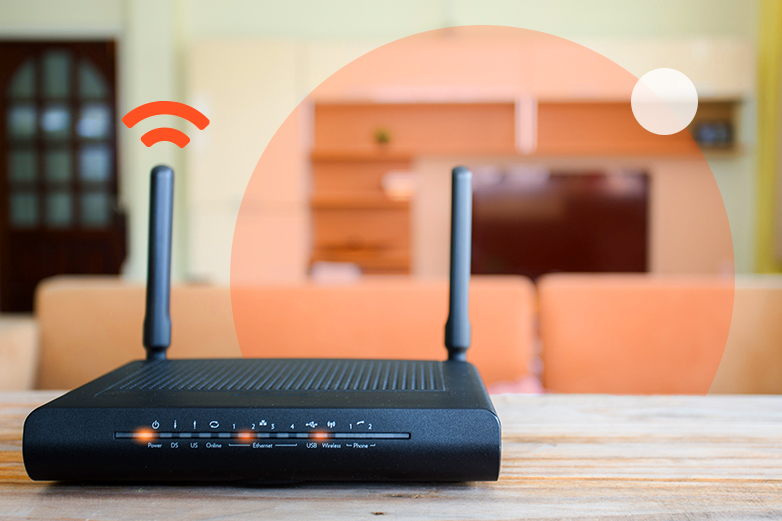
Fix Your Internet: 6 Key Reasons Your nbn® Is So Slow
Are you constantly frustrated by slow internet speeds? You’re not alone. Many Australians, particularly in regional areas, face challenges with their nbn® connection performance. Understanding why your internet is slow is the first step toward fixing it.
What many don’t realise is that the solution often lies within your own home. According to a recent nbn commissioned survey in 2025, 95% of customers don’t know that their in-home set-up is even a consideration and that it can impact their broadband experience.* Your equipment configuration and placement frequently have as much influence on performance as your chosen plan or external factors.
In this comprehensive guide, we’ll explore six common reasons why your nbn® connection might be underperforming and provide practical solutions to help you fix your internet issues.
See what’s available at your property
Why Is My nbn® So Slow?
There are numerous factors that can affect your internet speed and performance. Let’s examine the six most common culprits and how to address them:
1. Network Congestion
The Problem
Network congestion occurs when too many users are simultaneously accessing the same network resources. This is particularly noticeable during peak usage times, typically between 7 PM and 11 PM when most people are streaming, gaming, or browsing.
During these hours, the increased demand can slow down everyone’s connection, similar to traffic congestion on a busy highway.
The Solution
While network congestion is largely outside your control, there are strategies to minimise its impact:
- Schedule bandwidth-intensive activities during off-peak hours. Large downloads, system updates, and backups can be scheduled for early mornings or late nights when network traffic is lighter.
- Consider upgrading your plan. Higher-tier plans often provide better speeds during congestion periods due to higher bandwidth allocations.
- Use Quality of Service (QoS) settings. Many modern routers allow you to prioritise certain activities or devices. This ensures that important applications (like video calls) receive bandwidth priority over less critical tasks.
– Use wired connections for essential activities. During peak hours, connecting critical devices directly to your router via ethernet cable can bypass some of the congestion issues that affect Wi-Fi connections. While wireless offers convenience, a direct ethernet connection provides more consistent performance when the network is under strain.
2. Distance from the Node
The Problem
For those on Fibre to the Node (FTTN) connections, the distance between your home and the nearest node can significantly impact your speeds. The further you are from the node, the more signal degradation occurs over the copper portion of the connection.
The Solution
While you can’t physically move your home closer to the node, you can:
- Confirm your connection type. Understanding your specific nbn® technology (FTTN, FTTP, HFC, etc.) helps set realistic expectations for performance.
- Speak with your provider about realistic speeds. They can advise what speeds are achievable at your location based on your distance from infrastructure.
- Explore alternative connection types if available. In some areas, alternative technologies like Fixed Wireless or 5G home internet might offer better performance.
3. Equipment Issues
The Problem
Outdated or poorly configured equipment can significantly limit your internet performance, regardless of your plan speed or external factors.
Many Australians are using routers that simply can’t keep up with modern internet demands. If your router is more than 5 years old, it likely uses outdated technology that cannot support current internet speeds and security protocols.
Additionally, router placement plays a crucial role in Wi-Fi distribution throughout your home. Poor positioning can create dead zones and significantly reduce performance in certain areas.
The Solution
Optimise your equipment for better performance:
– Consider your router’s age and capabilities. Modern routers support newer Wi-Fi standards (Wi-Fi 5/6/6E) that offer significantly better performance than older generations. Upgrading an aging router can dramatically improve your internet experience without changing your plan.
– Strategic router placement is essential. Position your router centrally in your home, away from:
- Concrete walls and metal objects that block signals
- Electronic devices that cause interference (microwaves, cordless phones)
- Water features like aquariums
- Thick furniture or appliances
– Update firmware regularly. Router manufacturers frequently release updates that improve performance and security. Check for updates through your router’s administration interface.
– For larger homes, consider your network extension approach carefully. Traditional Wi-Fi extenders often create separate networks and can actually reduce your overall speeds while appearing to improve coverage. Mesh systems provide more seamless coverage by creating a unified network throughout your home, automatically connecting your devices to the strongest signal.
- Check all physical connections. Ensure cables are properly connected and not damaged. Sometimes, a loose or faulty cable can cause significant speed reductions.
4. Too Many Connected Devices
The Problem
Modern households typically have numerous devices connected to the internet simultaneously – smartphones, tablets, computers, smart TVs, and various IoT devices. Each connected device consumes a portion of your available bandwidth.
The Solution
Manage your connected devices more effectively:
- Identify and disconnect unused devices. Many devices remain connected to Wi-Fi even when not in active use, consuming bandwidth through background processes and updates.
- Set up device usage schedules. Many routers allow you to control when certain devices can access the internet, helping manage bandwidth during critical times.
– Understand Wi-Fi technology limitations. Older Wi-Fi standards struggle when multiple devices are connected simultaneously. Newer Wi-Fi standards (Wi-Fi 5/6/6E) handle multiple connections more efficiently, but this improved performance is only realised when both your router and devices support these standards.
– Prioritise wired connections for stationary devices. Connect devices like smart TVs, desktop computers, and gaming consoles directly to your router via ethernet cable when possible. This not only improves their performance but also reduces congestion on your wireless network.
5. Wi-Fi Signal Interference
The Problem
Wi-Fi signals can be disrupted by various sources of interference in your home environment. This interference can significantly reduce your effective speeds, even when your actual internet connection is performing well.
Your nbn connection box (formerly called the Network Termination Device or NTD) brings the connection to your home, but how that connection is distributed via Wi-Fi determines the experience on your devices. Many connectivity issues that appear to be “slow internet” are actually Wi-Fi distribution problems.
The Solution
Minimise interference and optimise your Wi-Fi signal:
- Change your Wi-Fi channel. In densely populated areas, neighbouring Wi-Fi networks can cause interference. Most routers allow you to manually select less congested channels.
- Consider using dual-band capabilities. If your router supports both 2.4GHz and 5GHz frequencies, use 5GHz for devices that require higher speeds. While 5GHz has shorter range, it typically experiences less interference.
– Be strategic with device placement. Keep Wi-Fi-dependent devices closer to your router when possible, or in direct line of sight. Physical barriers like walls significantly reduce signal strength.
– For multi-level homes, consider vertical router placement. Placing your router on the upper floor of a two-story home can improve overall coverage as signals travel downward more effectively than upward.
6. Plan Limitations
The Problem
Sometimes, your internet is performing exactly as expected based on your selected plan. Different nbn® speed tiers offer different maximum speeds, and your plan might simply not be suitable for your usage patterns.
The Solution
Ensure your plan aligns with your needs:
- Audit your internet usage. Consider how many people use your connection, what activities they engage in, and when peak usage occurs in your household.
- Compare different plans. Higher-tier plans generally offer better performance, especially during peak hours, but come with higher costs. Find the right balance for your needs and budget.
- Speak with your provider about your specific requirements. They can recommend the most suitable plan based on your usage patterns and location.
– Remember that no plan can overcome equipment limitations. Before upgrading to a more expensive plan, ensure your equipment can support higher speeds. Upgrading your router might provide the performance improvement you need without the additional monthly cost.
Additional Strategies to Fix Your Internet
Beyond addressing the six common issues above, consider these additional approaches to improve your internet performance:
Conduct Proper Speed Tests
When troubleshooting internet issues, accurate testing is essential:
– Use wired connections for testing. For the most accurate assessment of your connection’s true capabilities, conduct speed tests using a wired ethernet connection rather than Wi-Fi. This eliminates variables introduced by wireless signal interference.
– Test at different times. Run tests during both peak and off-peak hours to understand how congestion affects your specific connection.
– Use reputable testing tools. Services like Speedtest.net, Fast.com, or your provider’s recommended testing platform provide more reliable results than lesser-known testing sites.
Review Your Wi-Fi Technology
Understanding the technical aspects of your Wi-Fi can help identify bottlenecks:
– Check which Wi-Fi standards your devices support. Even if you have a Wi-Fi 6 router, devices that only support Wi-Fi 4 or 5 will be limited to those speeds.
– Consider the number of spatial streams your router supports. More advanced routers support multiple spatial streams, allowing for greater throughput when used with compatible devices.
– Evaluate whether your router supports beamforming. This technology focuses the Wi-Fi signal toward connected devices rather than broadcasting in all directions, improving performance for active devices.
Learn how the position of your router and the Wi-Fi technology it uses can impact your internet performance. This video explains where to place your router for the best coverage, what causes interference, and how newer Wi-Fi standards can improve speed, stability, and overall connection quality.
Key Points to Remember
When troubleshooting slow internet issues, consider these key factors:
- Multiple factors affect speed: Network congestion, distance from nodes, equipment quality, connected devices, signal interference, and plan limitations all play roles in your internet experience.
- Home setup impact: Recent research shows that 95% of customers don’t realise their in-home setup impacts their broadband experience.* Your equipment configuration fundamentally shapes your internet performance.
- Equipment considerations: If your router is more than 5 years old, consider upgrading as it likely uses outdated technology that cannot support modern internet speeds. Strategic router placement away from interference sources can dramatically improve performance.
- Connection type awareness: For activities requiring stability and maximum speeds, use wired connections instead of Wi-Fi. While wireless offers convenience, a direct ethernet connection provides superior reliability.
- Coverage solutions: For larger homes, mesh systems provide superior coverage compared to traditional Wi-Fi extenders. Unlike extenders that often create separate networks and can reduce overall speeds, mesh systems create a unified network throughout your home.
- Test methodically: When troubleshooting, change one factor at a time and test the results before moving to the next potential solution.
- Consult experts when needed: If you’ve tried basic troubleshooting and still experience issues, contact your internet service provider for specialised assistance.
Internet problems can be frustrating, but with systematic troubleshooting and the right approach, most issues can be resolved or significantly improved. By understanding these common causes of slow internet and implementing the suggested solutions, you can enjoy a more reliable and faster online experience.
*nbn commissioned survey in 2025: residential consumers who use nbn as their main internet service at home (Sample size of 6,225)

Wi-Fi Calling: Everything You Need To Know
In today’s connected world, staying in touch is essential. Yet many Australians, particularly those in regional areas, still struggle with mobile reception. Wi-Fi calling offers a solution to this common problem, allowing you to make and receive calls using your home internet connection rather than relying on mobile network coverage.
The quality of your Wi-Fi calling experience depends significantly on your in-home network setup. According to a recent nbn commissioned survey in 2025, 95% of customers don’t know that their in-home set-up is even a consideration and that it can impact their broadband experience.* This is particularly crucial for Wi-Fi calling, where network stability directly affects call quality and reliability.
This comprehensive guide explains everything you need to know about Wi-Fi calling, from how it works to setting it up on your device. We’ll also share tips on optimising your Wi-Fi network for the best calling experience.
See what’s available at your property
What is Wi-Fi Calling?
Wi-Fi calling is a feature that allows you to make and receive phone calls over a Wi-Fi network instead of using your mobile provider’s cellular network. This technology uses Voice over Internet Protocol (VoIP) to route calls through your internet connection.
The primary advantage is that you can make calls in areas with poor or no mobile reception, as long as you have access to a stable Wi-Fi connection. This makes it particularly valuable for:
- Regional areas with limited mobile coverage
- Buildings with poor indoor reception
- Basements and other areas where signals struggle to penetrate
Wi-Fi calling works seamlessly with your existing phone number, contacts, and dialler app. When enabled, your phone automatically switches between cellular and Wi-Fi networks for calls, choosing the strongest available connection.
How Wi-Fi Calling Works
When you enable Wi-Fi calling on your device, it establishes a secure connection with your mobile carrier through your internet service. Here’s the process:
- Your phone connects to a Wi-Fi network
- When you make or receive a call, your phone routes it through this Wi-Fi connection
- The call travels through your internet service provider to your mobile carrier’s network
- From there, it connects to the recipient like a normal call
This entire process happens in the background, with no noticeable difference to a standard mobile call. The person you’re calling won’t know you’re using Wi-Fi calling unless you tell them.
The quality of this connection depends significantly on your home network setup. Your router’s placement, age, and capabilities all play crucial roles in delivering the stable connection required for clear, uninterrupted calls.
Benefits of Wi-Fi Calling
Wi-Fi calling offers several advantages over traditional mobile calling:
Extended Coverage
The most significant benefit is extended coverage in areas with poor mobile reception. As long as you have a Wi-Fi connection, you can make and receive calls.
Improved Call Quality
In areas with weak cellular signals, calls made over a strong Wi-Fi connection can provide better clarity and fewer dropped calls.
No Additional Apps Required
Unlike third-party calling apps, Wi-Fi calling is integrated directly into your phone’s native dialler. There’s no need to convince friends and family to download specific applications.
Standard Call Charges
Wi-Fi calling typically uses your existing mobile plan minutes, not additional fees. International calls are usually charged at your standard mobile plan rates.
Battery Efficiency
In areas with poor mobile reception, your phone constantly searches for a signal, draining battery life. Wi-Fi calling can be more energy-efficient in these situations.
Wi-Fi Calling Availability in Australia
Most major Australian mobile carriers now support Wi-Fi calling, including:
- Telstra
- Optus
- Vodafone
- Various Mobile Virtual Network Operators (MVNOs)
However, availability can vary based on your specific plan and device. Check with your mobile provider to confirm whether Wi-Fi calling is supported on your current plan.
Device Compatibility for Wi-Fi Calling
Wi-Fi calling is supported on most modern smartphones, including:
- Recent iPhone models (iPhone 6 and newer)
- Most Android devices running Android 6.0 or later
- Select Windows phones
To check if your specific device supports Wi-Fi calling, consult your manufacturer’s website or contact your mobile carrier.
Setting Up Wi-Fi Calling
Enabling Wi-Fi calling on your device is typically straightforward. Here are general instructions for the most common devices:
For iPhone Users
- Go to Settings
- Select Mobile Data (or Cellular for some regions)
- Tap on Wi-Fi Calling
- Toggle “Wi-Fi Calling on This iPhone” to ON
For Android Users
The exact steps may vary depending on your device manufacturer, but generally:
- Open the Phone app
- Tap the three dots or Menu button
- Select Settings
- Look for “Wi-Fi Calling” or “Calls”
- Toggle Wi-Fi Calling to ON
After enabling this feature, you may need to enter or confirm your emergency address for emergency services, as they can’t automatically detect your location during Wi-Fi calls.
Optimising Your Home Network for Wi-Fi Calling
The quality of your Wi-Fi calling experience depends heavily on your home network setup. Here are essential optimisation strategies:
Strategic Router Placement
For optimal Wi-Fi calling performance, position your router:
- Centrally in your home, especially near areas where you frequently make calls
- Away from concrete walls, metal objects, and electronic devices that can cause interference
- Elevated off the floor (on a shelf or desk) for better signal distribution
- Away from cordless phones, microwaves, and Bluetooth devices that operate on similar frequencies
Router Age and Capabilities
If your router is more than 5 years old, it likely uses outdated technology that cannot support the consistent connection needed for quality Wi-Fi calling. Modern routers offer:
- Improved signal strength and stability
- Better handling of multiple connected devices
- Advanced Quality of Service (QoS) features that can prioritise voice traffic
- Enhanced security protocols
Wi-Fi Technology Considerations
Newer Wi-Fi standards (Wi-Fi 5/6/6E) offer significantly better performance for applications like Wi-Fi calling:
- Wi-Fi 6 provides more stable connections with less interference in crowded environments
- These standards offer lower latency, which reduces delays during calls
- They handle multiple devices more efficiently, preventing call quality degradation when others are using the network
Network Extension for Whole-Home Coverage
For larger homes where you need Wi-Fi calling throughout:
- Traditional Wi-Fi extenders have significant limitations for voice applications, often creating separate networks that can cause calls to drop when moving between coverage areas
- Mesh network systems provide seamless coverage by creating a unified network throughout your home, allowing you to move freely during calls without disconnection
- These systems automatically connect your phone to the strongest signal without manual switching
Consider Using 5GHz Bands for Calling
If your router supports dual-band operation:
- The 5GHz band typically experiences less interference than 2.4GHz
- While 5GHz has shorter range, it often provides more stable connections for voice calls
- Modern devices can automatically select the optimal band, but you may need to configure your router to ensure both bands are available
Troubleshooting Wi-Fi Calling Issues
If you experience problems with Wi-Fi calling, try these troubleshooting steps:
Check Your Wi-Fi Connection
Ensure your Wi-Fi connection is strong and stable. Wi-Fi calling requires a reliable internet connection with adequate speed. A minimum of 1-2 Mbps is typically sufficient for voice calls.
Test your connection using a wired device if possible. This will help determine if the issue is with your internet service or your Wi-Fi distribution. For consistently clear calls, your connection should have low latency (ping) values below 100ms.
Restart Your Devices
Sometimes, a simple restart can resolve connectivity issues:
- Turn off your phone
- Restart your router and modem
- Turn your phone back on
- Reconnect to Wi-Fi
Check Router Settings
If calls are dropping or experiencing quality issues:
- Ensure your router’s firmware is up to date
- Check if Quality of Service (QoS) settings are available and prioritise voice traffic
- If your router allows it, set up a dedicated network name (SSID) for voice devices using the 5GHz band
Update Your Device
Ensure your phone has the latest software updates, as these often include improvements to Wi-Fi calling functionality.
Contact Your Provider
If problems persist, contact your mobile service provider. They can verify that:
- Wi-Fi calling is properly provisioned on your account
- There are no network outages affecting the service
- Your device is correctly set up for Wi-Fi calling
Wi-Fi Calling and Emergency Services
When making emergency calls (000) in Australia, your phone will typically prioritise the mobile network over Wi-Fi calling. However, if no cellular signal is available, Wi-Fi calling can still connect you to emergency services.
Important note: When setting up Wi-Fi calling, you’ll be asked to provide an address for emergency services. This address is used if you make an emergency call over Wi-Fi, as emergency services cannot automatically detect your location through Wi-Fi calling.
Always ensure this address is kept current, especially if you use Wi-Fi calling in multiple locations.
Wi-Fi Calling vs. Alternative Solutions
Wi-Fi Calling vs. VoIP Apps
While apps like WhatsApp, Facebook Messenger, and Skype also allow voice calls over Wi-Fi, they differ from native Wi-Fi calling in several ways:
- Wi-Fi calling uses your regular phone number
- Calls connect to anyone, not just other app users
- It integrates with your phone’s native dialler and contacts
- Call quality is often more consistent
Wi-Fi Calling vs. Mobile Boosters
For areas with poor reception, some users consider mobile signal boosters. Compared to these devices:
- Wi-Fi calling is generally more cost-effective
- No additional hardware is required (beyond your existing router)
- Wi-Fi calling works anywhere with Wi-Fi, not just within range of the booster
Learn how the position of your router and the Wi-Fi technology it uses can impact your internet performance. This video explains where to place your router for the best coverage, what causes interference, and how newer Wi-Fi standards can improve speed, stability, and overall connection quality.
Key Points to Remember
Wi-Fi calling provides a valuable solution for making and receiving calls in areas with poor mobile reception. Here are the key takeaways:
- Extended coverage: Make and receive calls anywhere with Wi-Fi, even without mobile reception.
- Home setup matters: A recent survey revealed that 95% of customers don’t realise their in-home setup impacts their broadband experience.* For Wi-Fi calling, your network configuration directly affects call quality and reliability.
- Equipment considerations: If your router is more than 5 years old, consider upgrading as it likely cannot support stable Wi-Fi calling. Modern routers offer improved signal strength and can prioritise voice traffic for clearer calls.
- Strategic placement: Position your router centrally in your home, away from interference sources like concrete walls, metal objects, and electronic devices. This strategic placement ensures consistent call quality throughout your home.
- Coverage solutions: For larger homes, mesh systems provide superior coverage for Wi-Fi calling compared to traditional extenders. Unlike extenders that can cause calls to drop when moving between coverage areas, mesh systems create a unified network for seamless calling throughout your home.
- Setup is simple: Enabling Wi-Fi calling is straightforward on most modern smartphones and requires no additional apps or hardware.
- Standard charging applies: Wi-Fi calling typically uses your existing mobile plan minutes and is not charged as data usage.
- Emergency services work: You can reach emergency services via Wi-Fi calling, but remember to keep your registered address updated.
Wi-Fi calling represents an elegant solution to mobile coverage issues, particularly for those in regional areas or buildings with poor reception. By leveraging your existing internet connection, you can ensure you stay connected wherever Wi-Fi is available.
*nbn commissioned survey in 2025: residential consumers who use nbn as their main internet service at home (Sample size of 6,225)

How Fast Should My Broadband Speed Be?
When it comes to internet, the need for speed is real. But how fast should your broadband speed actually be? This is a common question many Australians ask, especially those in regional areas where options might seem limited.
What many don’t realise is that your internet experience isn’t solely determined by the plan you purchase. According to a recent nbn commissioned survey in 2025, 95% of customers don’t know that their in-home set-up is even a consideration and that it can impact their broadband experience.* Your equipment configuration often has as much influence on performance as your chosen speed tier.
In this comprehensive guide, we’ll help you understand broadband speeds, what factors influence them, and how to determine the right speed for your specific needs. Let’s dive in.
See what’s available at your property
Understanding Broadband Speeds: Download vs. Upload
Before determining how fast your broadband should be, it’s important to understand the two main components of internet speed:
Download Speed
Download speed refers to how quickly data can be transferred from the internet to your device. This affects activities like:
- Streaming videos
- Loading web pages
- Downloading files
- Playing online games
Download speeds are typically higher than upload speeds and are what most providers advertise when marketing their plans.
Upload Speed
Upload speed determines how quickly data can be sent from your device to the internet. This is crucial for:
- Video conferencing
- Sending emails with attachments
- Uploading files to cloud storage
- Live streaming
While often overlooked, adequate upload speed is essential for many modern internet activities, especially for those working from home.
For activities requiring reliable upload performance, such as video conferencing or file sharing, consider using wired connections rather than Wi-Fi. While wireless offers convenience, a direct ethernet connection provides superior stability and consistent speeds for these demanding tasks.
Common Broadband Speed Measurements
Internet speeds are typically measured in megabits per second (Mbps). Here’s a quick reference for understanding these measurements:
- 1 Mbps = 1 megabit per second
- 1 Gbps = 1000 Mbps (gigabit per second)
Higher numbers indicate faster speeds, but what constitutes “fast enough” depends entirely on your specific usage patterns and requirements.
Factors Affecting Your Broadband Speed
Several factors can influence the actual speeds you experience, regardless of what your plan advertises:
Connection Type
Different connection technologies offer varying speed capabilities:
- Fibre connections (FTTP, FTTN, FTTC, HFC) generally provide higher speeds
- Fixed Wireless offers moderate speeds but may be affected by external factors
- Satellite typically provides lower speeds with higher latency
Network Congestion
During peak usage times (usually evenings), you might experience slower speeds as more users simultaneously access the network.
Distance Factors
For some connection types like FTTN, the distance between your premises and the nearest node can impact speeds.
Your In-Home Setup
Your home equipment configuration significantly impacts your experienced speeds:
Router placement: Strategic router positioning eliminates dead zones and maximises signal strength. Position your router centrally in your home, away from concrete walls, metal objects, and electronic devices that can cause interference.
Router age: If your router is more than 5 years old, it likely uses outdated technology that cannot support modern internet speeds and security protocols. Upgrading can dramatically improve your experience without changing your plan.
Wi-Fi technology: Newer Wi-Fi standards (Wi-Fi 5/6/6E) offer significantly better performance than older generations, but only when both your router and devices support them. If your router supports Wi-Fi 6 but your devices only support Wi-Fi 5, you’ll be limited to Wi-Fi 5 speeds.
Network extension: For larger homes, traditional Wi-Fi extenders have significant limitations, often creating separate networks and reducing overall speeds. Mesh systems provide seamless coverage by creating a unified network throughout your home, automatically connecting devices to the strongest signal.
How Much Speed Do You Actually Need?
The ideal broadband speed varies based on your online activities and the number of connected devices in your household. Here’s a general guide:
Basic Internet Usage (1-2 users, few devices)
For basic web browsing, email, and social media usage, speeds of 12-25 Mbps are typically sufficient.
Recommended plan: nbn® 25
Moderate Usage (2-3 users, multiple devices)
If your household regularly streams HD content, participates in video calls, and downloads moderate-sized files, consider speeds of 25-50 Mbps.
Recommended plan: nbn® 50
For households with multiple users, proper router placement becomes even more critical. Centralised positioning helps distribute the signal evenly to all areas, while using wired connections for stationary devices can free up wireless bandwidth for mobile devices.
Heavy Usage (3+ users, many devices)
Households with multiple users simultaneously streaming, gaming, and downloading large files should opt for speeds of 50-100 Mbps or higher.
Recommended plan: nbn® 100
For heavy usage households, consider not only your plan speed but also your equipment capabilities. Your nbn connection box (formerly called the Network Termination Device or NTD) connects to your router, which then distributes the connection. If your router can’t handle the speed your plan offers, you won’t experience the full benefits.
Professional/Specialised Needs
Those working from home with high data requirements, content creators, or serious gamers might need speeds exceeding 100 Mbps.
Recommended plans: nbn® 250 or nbn® 1000 (where available)
Specific Speed Requirements for Common Activities
Understanding the speed requirements for specific activities can help you better assess your needs:
Video Streaming
- Standard Definition (SD): 3-5 Mbps
- High Definition (HD): 5-10 Mbps
- 4K/Ultra HD: 25-30 Mbps
Video Conferencing
- Standard quality: 1-2 Mbps (upload and download)
- HD quality: 3-5 Mbps (upload and download)
Online Gaming
- Casual gaming: 3-6 Mbps
- Competitive gaming: 15-25 Mbps with low latency
Cloud Services
- Basic cloud storage: 1-5 Mbps upload
- Cloud-based applications: 10-20 Mbps (both upload and download)
Remember that these requirements assume a direct, stable connection. When using Wi-Fi, you may need higher plan speeds to achieve the same performance, especially if your router is outdated or poorly positioned.
How to Test Your Current Broadband Speed
Before upgrading your plan, it’s wise to test your current speeds to establish a baseline. Here’s how:
- Use a reputable speed testing website or app
- Run tests at different times of day to account for variations
- Test using both wired and wireless connections to identify potential Wi-Fi issues
- Perform multiple tests and calculate the average
For the most accurate assessment of your connection’s true capabilities, conduct speed tests using a wired ethernet connection rather than Wi-Fi. This eliminates variables introduced by wireless signal interference and provides a clearer picture of your actual connection speed.
When to Consider Upgrading Your Broadband Speed
Here are some signs that it might be time to upgrade your internet speed:
- You frequently experience buffering when streaming content
- Video calls regularly freeze or drop
- Multiple users can’t comfortably use the internet simultaneously
- Downloads take excessively long to complete
- You’ve added more internet-connected devices to your home
Before upgrading your plan, however, consider whether your equipment might be the bottleneck. Upgrading an outdated router or optimising your current setup might provide the performance improvement you need without the additional monthly cost of a faster plan.
Tips for Improving Your Current Broadband Speed
Before upgrading your plan, try these strategies to optimise your existing connection:
Optimise Your Router Placement
Position your router centrally in your home, away from:
- Concrete walls and metal objects
- Electronic devices that cause interference (microwaves, cordless phones)
- Fish tanks and large metal furniture
- Heat sources
Elevating your router off the floor can also improve signal distribution.
Update Your Equipment
If your router is more than 5 years old, consider upgrading to a newer model that supports current Wi-Fi standards. Modern routers offer improved range, faster Wi-Fi speeds, better security features, and support for more simultaneous connections.
Use Wired Connections When Possible
For stationary devices that require consistent performance (gaming consoles, desktop computers, smart TVs), use ethernet cables rather than Wi-Fi. This not only improves the performance of the connected device but also reduces congestion on your wireless network.
Manage Connected Devices
Disconnect devices you’re not actively using, as they might be consuming bandwidth in the background.
Schedule Large Downloads
Plan large downloads during off-peak hours when network congestion is minimal.
Consider Network Extension Solutions
If you have a larger home with Wi-Fi dead zones, consider investing in a mesh network system rather than traditional Wi-Fi extenders. Unlike extenders that often create separate networks and reduce overall speeds, mesh systems provide seamless coverage throughout your home, automatically connecting your devices to the strongest signal.
Skymesh Broadband Plans and Speed Options
At Skymesh, we offer a range of broadband plans designed to meet diverse needs:
nbn® Fixed Line Plans
Our Fixed Line plans offer various speed tiers to suit different requirements, from basic browsing to high-demand professional use.
nbn® Fixed Wireless Plans
Designed specifically for regional Australians, our Fixed Wireless plans provide reliable connectivity with competitive speeds.
nbn® Sky Muster® Satellite Plans
Our satellite plans ensure even the most remote locations can access reliable internet services.
Home Wireless
For areas where other options are limited, our Home Wireless solutions offer flexibility and competitive speeds.
Learn the key setup tips that help you get the best performance from your home Wi-Fi, including equipment choices, placement basics, and simple ways to improve speed, coverage, and reliability.
Key Points to Remember
When determining how fast your broadband should be, consider these key factors:
- Usage patterns matter: Your online activities and the number of connected devices in your household should guide your speed selection. Basic usage may require only 25 Mbps, while heavy usage households benefit from 100 Mbps or more.
- Home setup impact: Recent research shows that 95% of customers don’t realise their in-home setup impacts their broadband experience.* Your equipment configuration fundamentally shapes your internet performance.
- Equipment considerations: If your router is more than 5 years old, consider upgrading as it likely uses outdated technology that cannot support modern internet speeds. Strategic router placement away from interference sources can dramatically improve performance.
- Connection type awareness: For activities requiring stability and maximum speeds—like video conferencing, gaming, or large file transfers—use wired connections instead of Wi-Fi. While wireless offers convenience, a direct ethernet connection provides superior reliability.
- Coverage solutions: For larger homes, mesh systems provide superior coverage compared to traditional Wi-Fi extenders. Unlike extenders that often create separate networks and can reduce overall speeds, mesh systems create a unified network throughout your home.
- Test before upgrading: Before changing plans, test your current speeds at different times using both wired and wireless connections to identify potential issues.
- Optimise before upgrading: Try improving your existing setup through better router placement, equipment updates, and connection management before investing in a faster plan.
At Skymesh, we’re committed to helping you find the right broadband speed for your specific needs. Contact our team for personalised recommendations based on your usage patterns and location.
*nbn commissioned survey in 2025: residential consumers who use nbn as their main internet service at home (Sample size of 6,225)

A Guide To Understanding New Internet Service Connection Times
Connecting to a new internet service can be both exciting and challenging. Understanding the process and timeframes involved can help set realistic expectations and ensure a smoother transition. This comprehensive guide aims to demystify new internet service connection times in Australia, focusing on nbn® services.
While waiting for your connection to be established, it’s worth planning your ideal in-home setup. A recent nbn commissioned survey in 2025 revealed that 95% of customers don’t know that their in-home set-up is even a consideration and that it can impact their broadband experience.* Taking time during the connection waiting period to prepare your home environment can significantly improve your internet experience once connected.
At Skymesh, we believe in transparency and keeping our customers informed. Let’s explore the typical connection timelines, factors that might affect these timeframes, and what you can do to prepare for your new internet service.
See what’s available at your property
Standard Connection Times for Different nbn® Technologies
Different nbn® technologies come with varying installation requirements and, consequently, different connection timeframes. Here’s what you can generally expect:
Fixed Line Connections (FTTP, FTTN, FTTC, HFC)
For most Fixed Line connections, standard connection times typically range from 5 to 15 business days. This timeframe accounts for:
- Processing your order
- Checking infrastructure availability
- Scheduling technician visits if required
- Completing any necessary installations
In areas with existing infrastructure, connections may be established more quickly, sometimes within a few days. However, areas requiring new infrastructure development might experience longer waiting periods.
Fixed Wireless
Fixed Wireless connections usually take between 10 to 20 business days to establish. This longer timeframe is due to:
- The need for specialised equipment installation
- Signal testing to ensure optimal performance
- Potential weather-related delays during installation
During the Fixed Wireless installation process, the technician will set up your outdoor antenna and nbn connection box (formerly called the Network Termination Device or NTD). This is an excellent opportunity to discuss optimal placement of your equipment with the technician, particularly where your router will be located to maximise coverage throughout your home.
Sky Muster® Satellite
Sky Muster® Satellite connections typically have a connection time of 10 to 20 business days. These installations are more complex and involve:
- Mounting a satellite dish on your property
- Precise dish alignment for optimal signal reception
- Weather-dependent installation procedures
Factors That May Affect Connection Times
Several factors can influence how quickly your new internet service can be connected:
Geographical Location
Urban areas generally experience faster connection times due to existing infrastructure and more readily available technicians. Rural and remote locations might face longer waiting periods due to logistics and resource constraints.
Property Access
Ease of access to your property can significantly impact installation timeframes. Properties with difficult access points may require additional planning and specialised equipment, potentially extending the connection time.
Infrastructure Requirements
If your property requires new infrastructure installation or upgrades to existing systems, this can extend the connection timeline. Such requirements are more common in newly developed areas or locations that haven’t previously had nbn® services.
Technical Complexities
Some installations present unique technical challenges that may extend the standard timeframes. These might include:
- Non-standard building structures
- Heritage listing considerations
- Shared property complexities (apartments, townhouses)
Appointment Availability
Technician availability can vary based on demand in your area. During peak periods or in high-demand regions, you might experience longer waiting times for installation appointments.
Planning Your In-Home Setup During the Wait
While waiting for your connection to be established, use this time productively to prepare your home for optimal internet performance:
- Router placement planning: Identify a central location in your home for your router, away from concrete walls, metal objects, and electronic devices that can cause interference. This strategic placement will eliminate dead zones and maximise coverage once you’re connected.
- Equipment assessment: If you’re planning to use an existing router, check its age and specifications. Routers older than 5 years typically use outdated technology that cannot support modern internet speeds and security protocols. Consider upgrading your equipment to fully benefit from your new connection.
- Wired connection points: Identify which devices would benefit from wired rather than wireless connections. While Wi-Fi offers convenience, wired connections provide stability and maximum speeds for gaming, streaming, and work applications. Plan the cable routing in advance.
- Network extension considerations: For larger homes, research whether you’ll need additional coverage solutions. Traditional Wi-Fi extenders have significant limitations, often creating separate networks and reducing overall speeds. Mesh systems provide more seamless coverage by creating a unified network throughout your home.
How to Check Your Connection Progress
Once you’ve placed an order for a new internet service, you’ll naturally want to stay informed about its progress. Here are ways to keep track:
Provider Updates
Most internet service providers, including Skymesh, provide regular updates on your connection progress. These updates may come through:
- Email notifications
- SMS alerts
- Online account portals
Direct Contact
If you haven’t received an update or have specific questions, don’t hesitate to contact your provider directly. At Skymesh, our customer service team is ready to provide detailed information about your connection status.
nbn® Tracking
For nbn® services, you can sometimes track the availability and rollout in your area through the official nbn® website. This can give you broader insights into infrastructure development in your region.
Preparing for Your Installation
Proper preparation can help ensure a smooth installation process and potentially reduce connection times. Here are some tips:
Clear Access
Ensure clear access to areas where equipment needs to be installed, including:
- The exterior of your property where cables might enter
- The location where your nbn connection box will be installed
- Power outlets near installation points
Be Available
Try to be available on your scheduled installation day. If you can’t be present, arrange for someone over 18 to be at the property to provide access and make decisions if needed.
Prepare Questions
Have any questions ready for the technician about:
- Optimal equipment placement
- Basic troubleshooting tips
- Maintenance requirements
Ask about Wi-Fi optimisation: Use the technician’s visit as an opportunity to discuss:
- The best location for your router based on your home’s layout
- Which Wi-Fi channels might work best in your area
- Whether your existing equipment is suitable for your new connection
- How different Wi-Fi standards (Wi-Fi 5/6/6E) might affect your experience with various devices
What Happens After Connection
Once your service is connected, there are a few important steps to ensure everything is working optimally:
Testing Your Connection
Perform speed tests to ensure your connection is operating as expected. This can be done through various online speed testing tools or through your provider’s website.
For the most accurate assessment of your connection’s true capabilities, conduct speed tests using a wired ethernet connection rather than Wi-Fi. This eliminates variables introduced by wireless signal interference and provides a clearer picture of your actual connection speed.
Setting Up Your Equipment
Configure your router and other equipment according to the provider’s recommendations. This may include:
- Connecting your router to your nbn connection box
- Setting up Wi-Fi networks and passwords
- Configuring any additional networking equipment
Remember that your in-home setup is the foundation of your internet experience. Take time to optimise your equipment placement and configuration to ensure the best possible performance from your new connection.
Troubleshooting Initial Issues
It’s not uncommon to experience minor issues during the initial setup. Most can be resolved through:
- Restarting your equipment
- Checking cable connections
- Following your provider’s troubleshooting guides
If problems persist, contact your provider’s technical support for assistance., factors like geography and router setup still have a significant impact on setup speed.
Learn the key setup tips that help you get the best performance from your home Wi-Fi, including equipment choices, placement basics, and simple ways to improve speed, coverage, and reliability.
Key Points to Remember
Understanding connection times for new internet services helps set realistic expectations and enables better planning. Here are the key takeaways:
- Connection timelines vary: Fixed Line services typically take 5-15 business days, while Fixed Wireless and Sky Muster® Satellite may take 10-20 business days to connect.
- Multiple factors affect timing: Your location, property access, infrastructure requirements, and technician availability all influence how quickly your service can be established.
- Preparation matters: Clear access to installation areas, being available during installation, and having questions ready can help ensure a smooth connection process.
- In-home setup planning: A surprising 95% of customers don’t realise their in-home setup impacts their broadband experience.* Use your waiting time to plan optimal router placement, assess equipment needs, and prepare for the best possible configuration.
- Equipment considerations: When setting up your new connection, remember that router age and placement significantly impact performance. Routers older than 5 years may limit your experience, and strategic positioning away from interference sources maximises coverage.
- Connection type awareness: For activities requiring stability, like video conferencing or gaming, plan to use wired connections rather than relying solely on Wi-Fi.
- Post-connection steps: Once connected, test your service (preferably via wired connection), properly configure your equipment, and know how to seek help if needed.
At Skymesh, we’re committed to making your internet connection experience as smooth as possible. Our team is ready to assist you throughout the process, from initial order to ongoing support.
*nbn commissioned survey in 2025: residential consumers who use nbn as their main internet service at home (Sample size of 6,225)